DYONEX on phones and tablets: setup and controls
What to check when installing the touch edition, how rotation works and what to expect from windowed playback. This guide covers the direct mobile download of DYONEX for Android 8.0 or later.
Choose the touch edition
Choose Phones and tablets under Downloads. The Android TV and Fire TV editions use remote controls and are not substitutes for this edition. Check your Android version in device settings before installing. Android 8.0 is a minimum system requirement: video compatibility also depends on the processor, its codecs and the source you add.
If you already use DYONEX from Google Play, update through that store. Keep using the website download to update the direct edition. Android app information shows the installed version and may show its installation source; menu names vary by manufacturer.
Check Home after rotating
The planetary home screen has six shortcuts: live TV, movies, series, favourites, playlists and settings. Portrait mode uses two columns and landscape mode three. If planets look off-centre or cards appear stretched, check the installed edition and version before reinstalling. The direct mobile download currently available on this site is 2.1.1; use Google Play to update an installation obtained from that store. Explore the shortcuts before connecting a playlist and return with Back or Home.
A section that remains blue is an interface issue, different from a video that will not play. Check that DYONEX is updated and report the model, Android version, orientation and affected section. A screenshot without private details helps reproduce the issue.
Add a playlist on the tablet itself
Open Playlists and Add playlist. Use M3U URL for a complete address, or Xtream Codes when your source supplied a server, username and password separately. The optional EPG field is for schedules, not video. Save and connect, wait for the response and first check a channel or title you know is available from your source.
Floating window and device limits
During playback, show the controls and use Window if supported. Check the Android Picture-in-picture permission for DYONEX. The system controls the window size and position; manufacturer software and power-saving modes may limit it. This feature does not add a source or make an unsupported video compatible. If it fails, first check full-screen playback and tell support whether you get sound, a picture or a specific error.
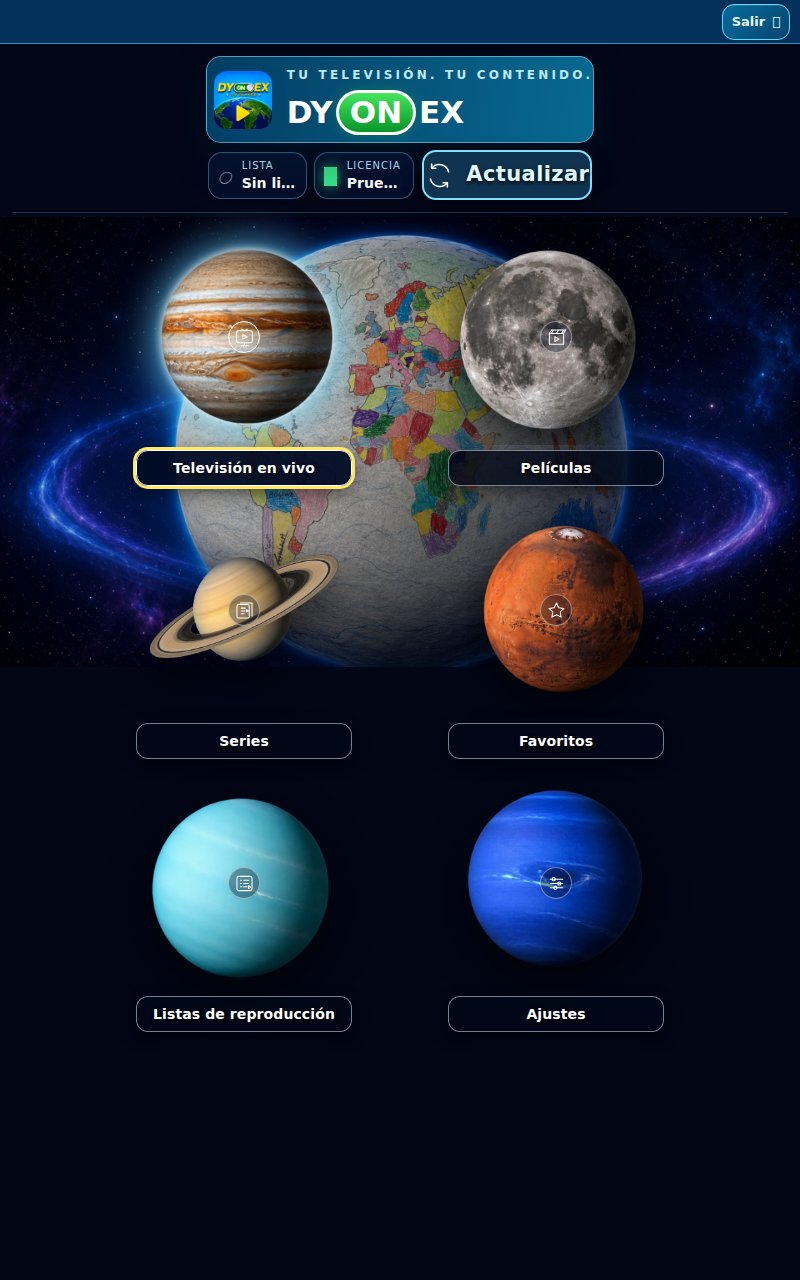
Actual DYONEX UI in a demonstration environment, with no playlists loaded. UI shown in Spanish.