Update DYONEX without losing playlists or settings
Identify your edition before downloading. Updating the same app differs from installing another edition, and clearing data is not a normal update step.
Check the installation source
If you installed DYONEX from Google Play, update through its store listing. If you used dyonex.app, select the same edition again: phone/tablet, Android TV or older Fire TV. The licence and payment method belong to the channel you used. An AAB created for Google Play is not an installer you can open directly on Android.
Prepare and install the update
Before starting, check the installed version and privately retain the original details for your sources. Download from your edition’s official page. For the website edition, open the APK and update over the existing app. Do not uninstall or select Clear data as part of the update. Saved sources and settings belong to that installation’s local data.
If Android refuses installation
Keep the exact message. An incomplete file, unsupported Android version, lower version code or different signature can prevent an update. Two files named DYONEX are not necessarily the same edition or interchangeable. If Android reports a package or signature conflict, check the source of both installations before deleting anything.
Check the result before continuing
Open the app and confirm the version. Check that your playlists, language and settings remain. On mobile, try Home shortcuts in portrait and landscape, then open a channel and a title from your authorised source. Updating the player does not renew an expired content subscription. For a store licence, use the same purchasing account and its restore function if the entitlement changes.
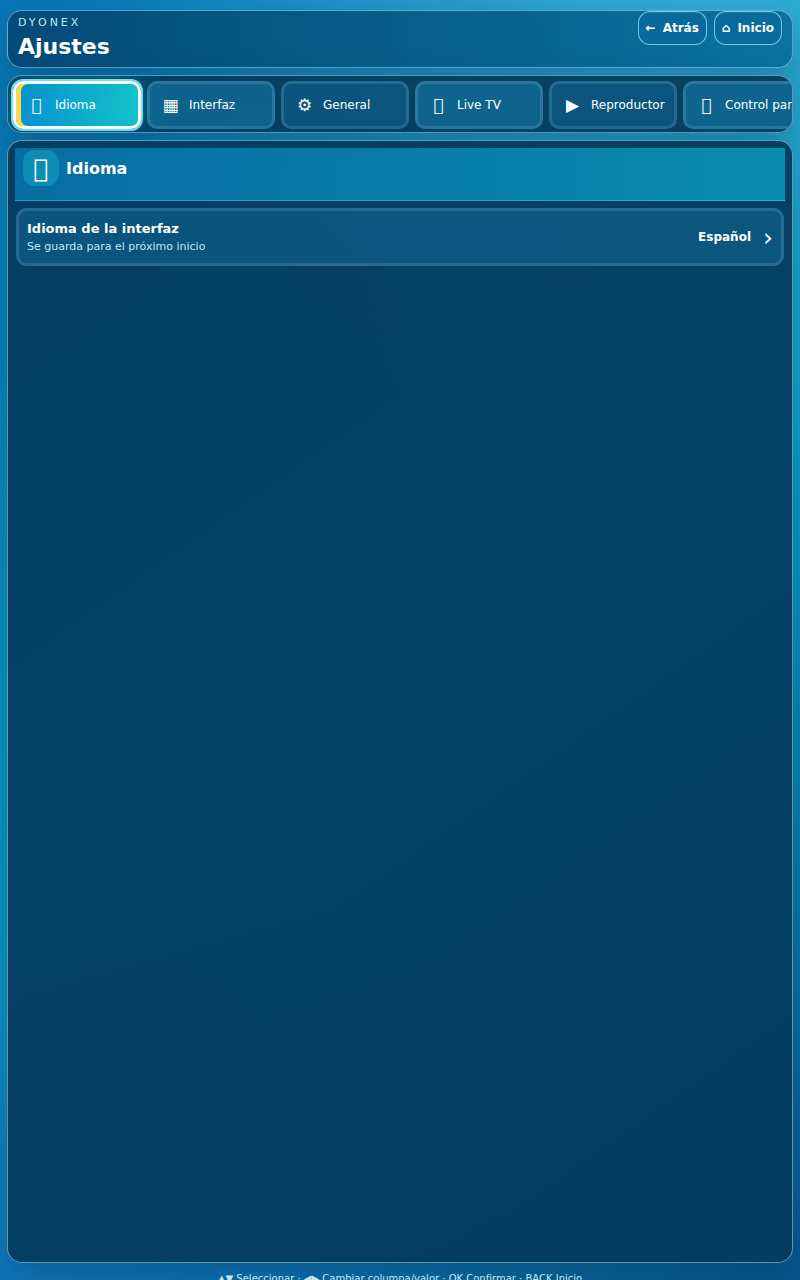
Actual DYONEX UI in a demonstration environment, with no playlists loaded. UI shown in Spanish.